
TL;DR: An AI video upscaler enlarges a video and estimates detail between the original pixels. Test the same short clip in each tool and compare faces, text, and motion at the same viewing size before paying for a full export. Choose 4K when the delivery format calls for it or when your test shows a visible benefit.
What does an AI video upscaler do?
An AI video upscaler increases a video's frame dimensions and uses a model to estimate how the larger frame should look. A 1920 × 1080 frame has about 2.1 million pixels, while a 3840 × 2160 frame has about 8.3 million. The extra pixels are estimated, so small lettering or facial detail can look sharper while differing from what the camera originally recorded. Adobe Firefly Help
How can you upscale a video to 4K?
To upscale a video to 4K, choose 3840 × 2160 as the output size for a standard widescreen project and export a short preview first. Use the original file if you have it. Keep the frame rate and aspect ratio consistent across your comparisons so you can judge the effect of upscaling itself.
- Pick a 10- to 20-second section with motion, a face, and a detailed background.
- Export it at 1080p and 4K using the same input clip.
- Play both exports at the same display size and watch edges, lettering, and moving objects.
- Check the exported file size, watermark, and whether the editor accepts the file.
Is AI video upscaling any good?
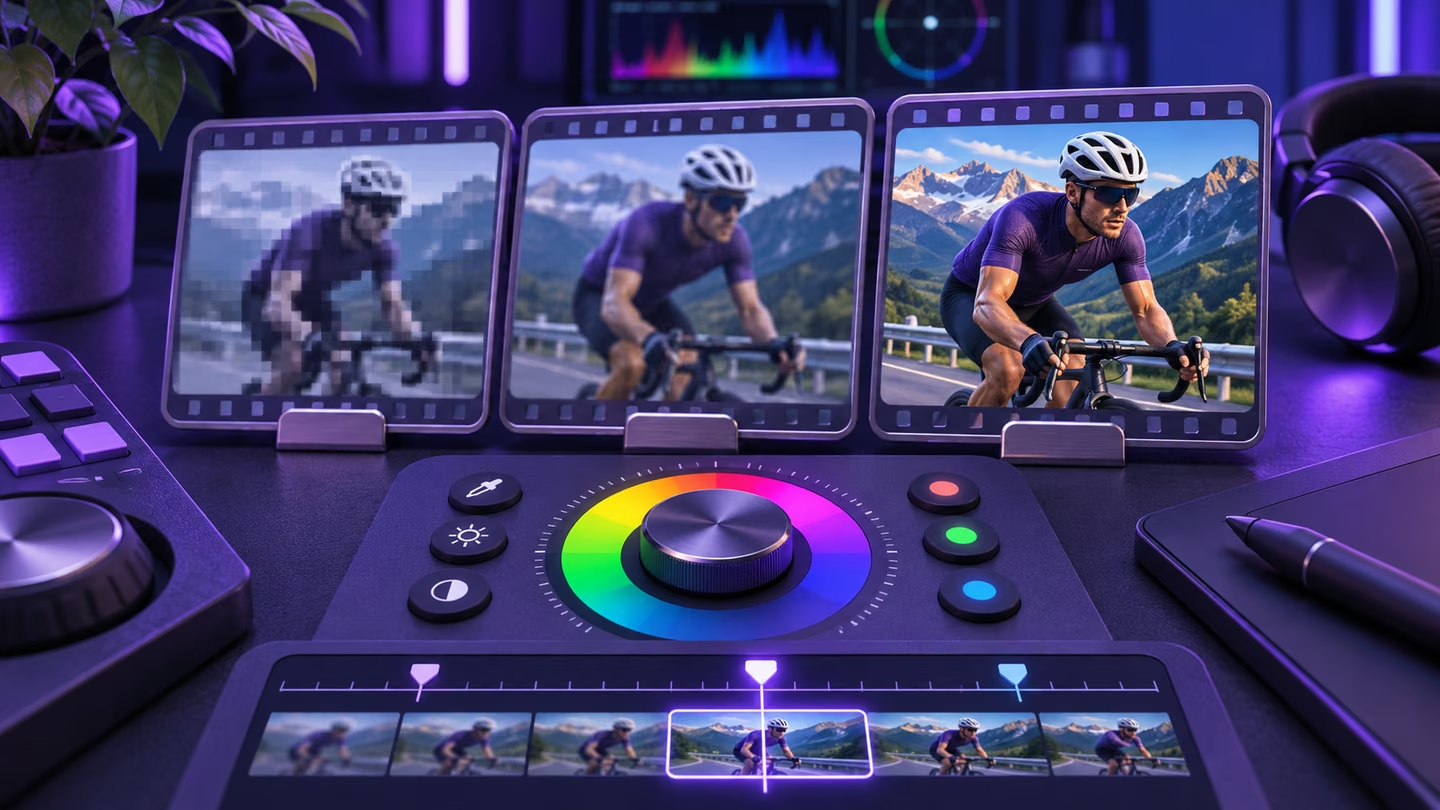
AI video upscaling can help a clean low-resolution clip fit a higher-resolution project, especially when a preview shows stable edges and natural-looking faces. Heavily compressed footage, motion blur, and tiny text are harder cases because the source contains less information. Compare several seconds in motion to catch flickering textures and edges that look fine in a still frame. Topaz Labs
| Check | What to look for |
|---|---|
| Faces | Skin texture stays consistent as the person moves |
| Small text | Letter shapes stay stable from frame to frame |
| Background | Fine patterns keep a consistent appearance as the camera moves |
| Delivery | Resolution, frame rate, and file size match the project |
When should you export at 1080p instead of 4K?
Export at 1080p when the delivery platform calls for 1080p and your side-by-side test shows little benefit from enlarging the original. A larger pixel grid can make edges easier to inspect, but the output bitrate and codec also influence file size and compression. A 4K preview should meet a practical need, such as matching a 4K timeline or making a small object easier to see.
| Your source | Useful test |
|---|---|
| A clean 1080p clip for a 4K edit | Export a short 4K section and inspect it beside the other shots |
| A small, heavily compressed download | Compare a basic resize with AI upscaling before paying for processing |
| An old clip with motion blur | Watch the same moving edge through several frames and look for unstable detail |
| A clip with text or captions | Keep the original captions when possible and re-add them after resizing |
What else should you check before exporting?
Can an upscaler fix a blurry video?
An upscaler can make a blurry video look clearer, but the added detail is estimated. For a severely out-of-focus shot, test whether the result looks natural at normal viewing size before processing the full clip.
Does 4K upscaling change the frame rate?
Increasing resolution changes the dimensions of each frame. Changing frame rate is a separate operation called frame interpolation, so keep that setting consistent during your comparison.
How can you upscale to 4K for free?
Use a tool that offers a free 4K preview or export and test it with a short clip. Check duration limits, watermark rules, and output resolution before uploading the whole project.
Should you upload private footage to a browser-based tool?
Check the provider's processing and retention terms before uploading private footage. A tool that processes the clip on your device may be a better fit if your project restricts external uploads.
Choose an AI video upscaler by testing one representative clip at your intended viewing size. Use the export setting that gives you stable motion, readable detail, and a file that fits your workflow.